
The Conditional Discounts for WooCommerce plugin allows you to create discounts with all sorts of rules and conditions. In this tutorial, we will show you how to create a simple discount, but first, let us break down the different segments that make up a usual discount inside the Conditional Discounts for WooCommerce plugin.
The Anatomy of a Discount
In Conditional Discounts for WooCommerce, a typical discount has the following segments: Periods and Dates, Rules, and Applicable Actions.
First Segment: Periods and Dates
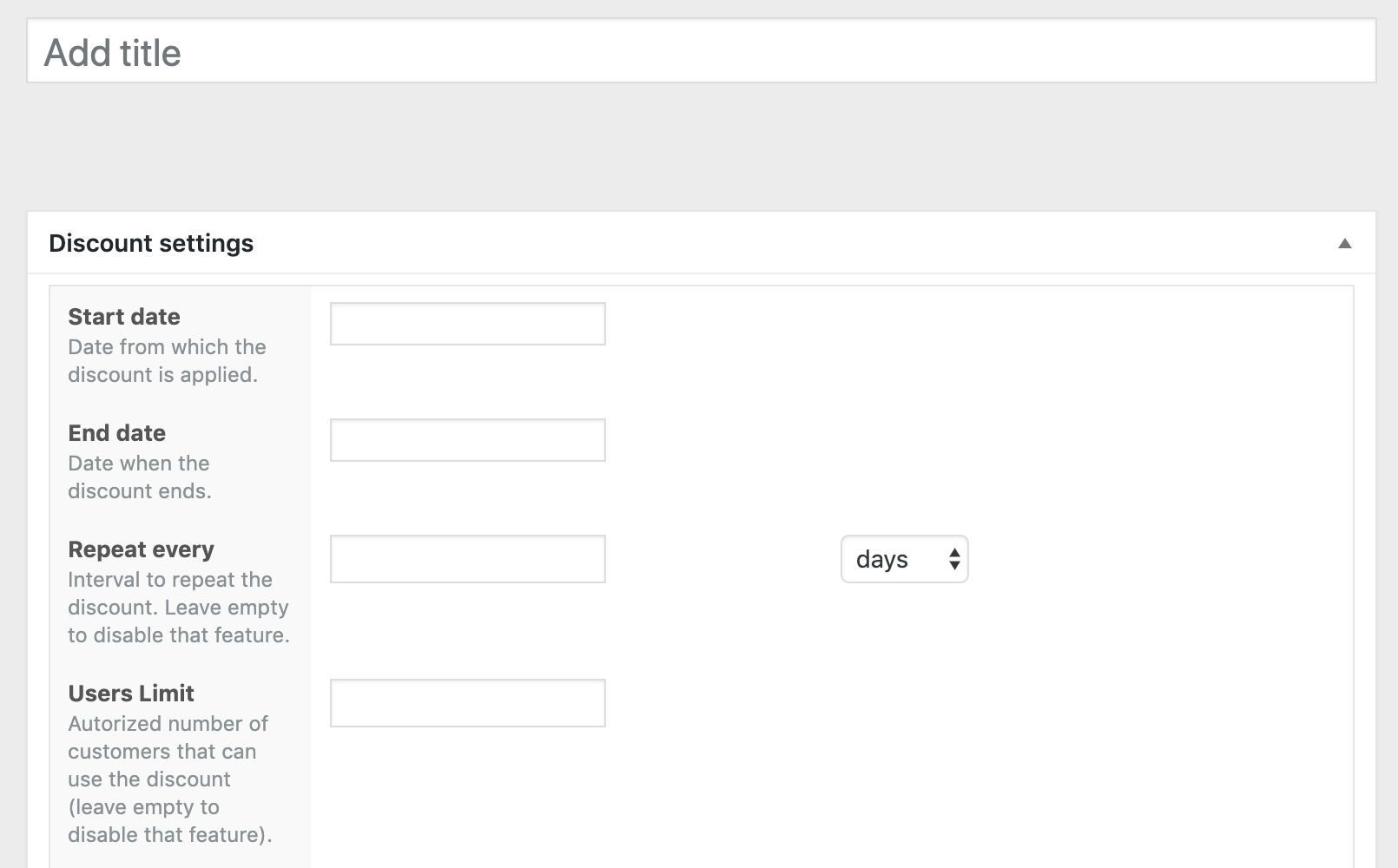
This segment pertains to the dates and periods that you need the discount to be active for. All the fields in this segment are optional. You can use them if you need to measure impact and tweak discounts to see what works for your store. The fields in this segment are:
-
- Start date
- End date
- Repeat every
- User’s limit
Second Segment: Rules
- Rules groups relationship: gives you two options OR and AND. “AND” implies that all group rules must be verified before the discount action can be applied. “OR” means that any one of the rules you specify can be valid before the discount action is applied.
- Rules: are the conditions that must be met for the customer to enjoy the discount that you set up.
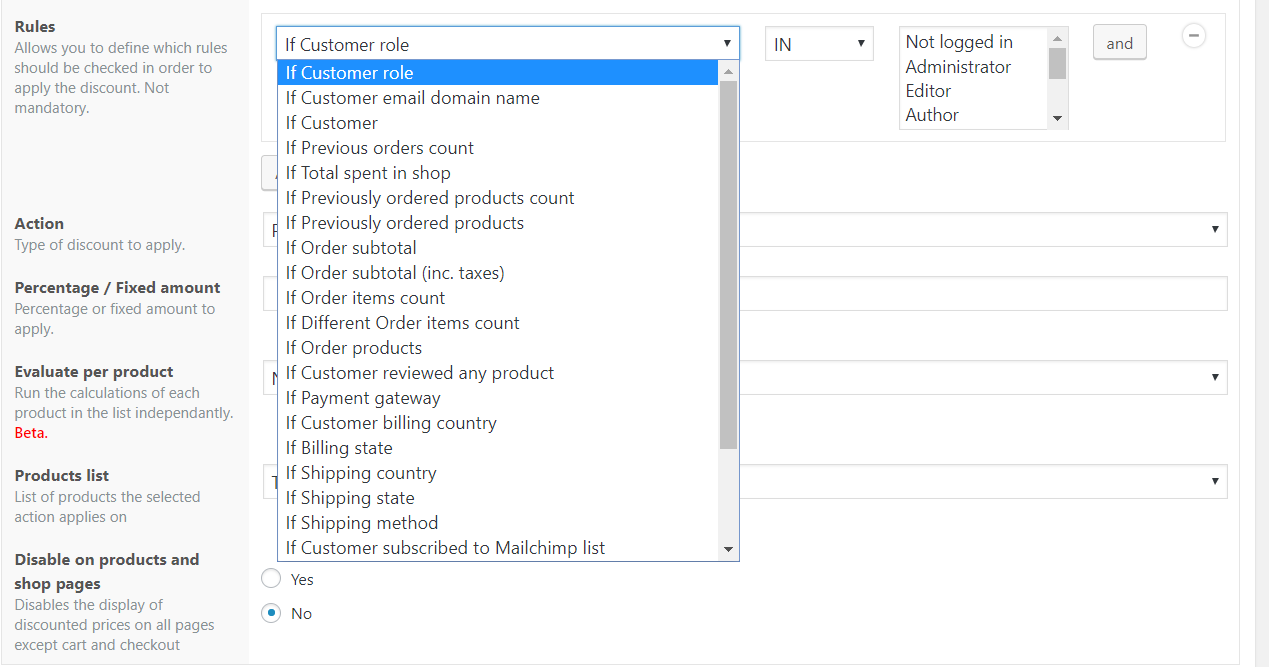
| SN | Rule | Operator | Value |
| 1 | If Customer Role | IN/NOT IN | List of all user roles in the site. |
| 2 | If Customer email domain name | Type in domain names, separated by commas, e.g. yahoo.com, gmail.com etc. | |
| 3 | If Customer | List of all registered users on the site. | |
| 4 | If Previous Orders count | LESS THAN, EQUAL TO, MORE THAN, OR A MULTIPLE OF | Type in a numerical number |
| 5 | If Total spent in shop | ||
| 6 | If Previously ordered products count | ||
| 7 | If Previously ordered products | IN/NOT IN | List of all created product lists |
| 8 | If Order subtotal | LESS THAN, EQUAL TO, MORE THAN, OR A MULTIPLE OF | Type in a numerical number |
| 9 | If Order subtotal (inc. taxes) | ||
| 10 | If Order items count | ||
| 11 | If Different order items count | ||
| 12 | If Order products | IN/NOT IN | List of all created product lists |
| 13 | If Customer reviewed any product | ||
| 14 | If payment gateway | List of all activated payment gateways in the WooCommerce store | |
| 15 | If Customer billing country | IN/NOT IN | List of all published countries in the WooCommerce store |
| 16 | If billing state | List of all published states in countries in the WooCommerce store | |
| 17 | If Shipping country | List of all published countries in the WooCommerce store | |
| 18 | If Shipping state | List of all published states in countries in the WooCommerce store | |
| 19 | If Shipping method | List of all activated shipping methods in the WooCommerce store | |
| 20 | If Customer subscribed to MailChimp list | IN/NOT IN | List of all MailChimp lists of the connected MailChimp account |
| 21 | If Customer subscribed to a SendInBlue list | List of all SendInBlue lists of the connected SendInBlue account | |
| 22 | If Customer subscribed to a NewsletterPlugin list | IN/NOT IN | List of all the connected NewsletterPlugin subscriber lists. |
| 23 | If Customer is following an affiliate link | IN/NOT IN | List of affiliate membership lists |
| 24 | If Customer belongs to specified groups | IN/NOT IN | List of created groups |
| 25 | If shop currency | IN/NOT IN | List of all currencies in the WooCommerce store. |
Third Segment: Applicable Actions
In a typical discount created using the Conditional Discounts for WooCommerce, once the chosen rule conditions are met by a customer, several types of actions that are applicable.
Actions are benefits the customer enjoys in the discount once these rules are met.
These actions can be loosely divided into these sections:
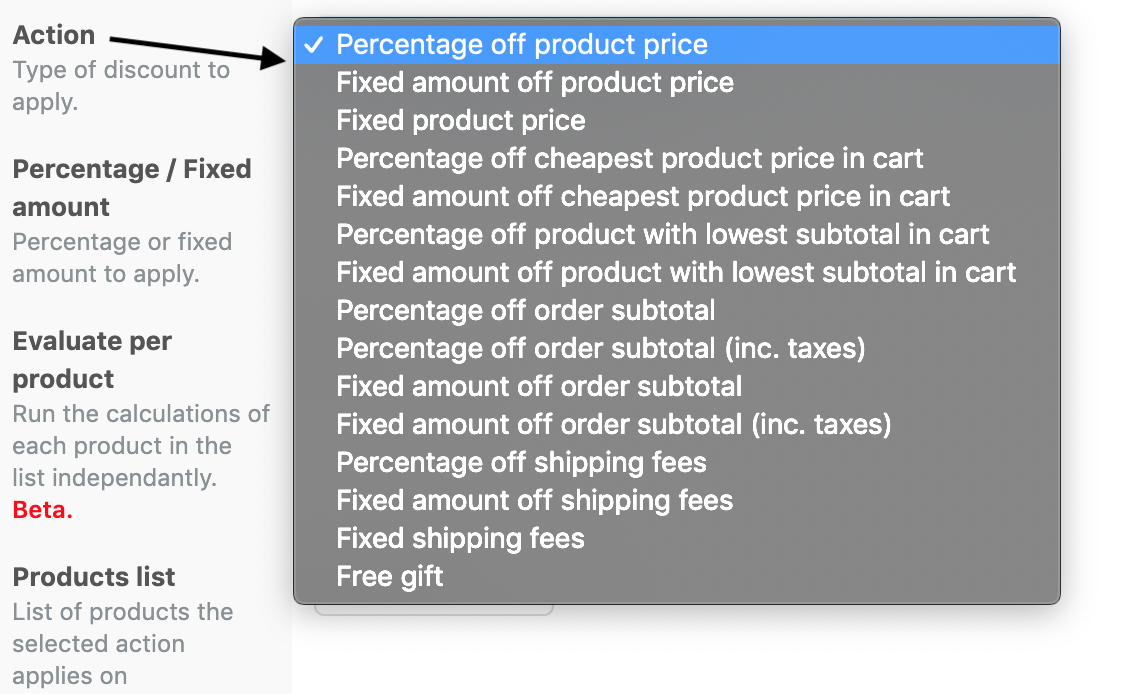
| SN | Section | Action Title | Type |
| 1 | Product price: these actions affect the product price that the customer will be charged at the front end. | Percentage off product price | Percentage |
| Fixed amount off product price | Fixed amount | ||
| Fixed product price | Fixed amount | ||
| 2 | Cheapest product price in cart: these actions target the products with the cheapest product price, that meet the discount rules. | Percentage off cheapest product price in cart | Percentage |
| Fixed amount off cheapest product price in cart | Fixed amount | ||
| 3 | Lowest subtotal in cart: these actions select the products with the lowest subtotals in the customer’s cart. | Percentage off product with lowest subtotal in cart | Percentage |
| Fixed amount off product with lowest subtotal in cart | Fixed amount | ||
| 4 | Order subtotal: these actions focus on the total order subtotal of the customer. | Percentage off order subtotal | Percentage |
| Percentage off order subtotal (inc. taxes) | Percentage | ||
| Fixed amount off order subtotal | Fixed amount | ||
| Fixed amount off order subtotal (inc. taxes) | Fixed amount | ||
| 5 | Shipping fees: these actions change the shipping fees of the customer’s order. | Percentage off shipping fees | Percentage |
| Fixed amount off shipping fees | Fixed amount | ||
| Fixed shipping fees | Fixed amount | ||
| 6 | Free gift: this action provides another WooCommerce product in your selected product list, to give the customer as a reward, when the discount rules are met. | Free gift | Product(s) |
Below the “Actions” segment, several sub-fields that assist in defining the selected action are listed.
| SN | Sub-Action | Action Section |
| 1 | Percentage/Fixed Amount: the amount to be applied as the selected discount e.g. 50% | Product price, Cheapest product price in cart, Lowest subtotal in cart, Order subtotal, Shipping fees |
| 2 | Evaluate per product: [STILL IN BETA] to determine if the products in the cart should be evaluated one by one or all together. | Product price, Cheapest product price in cart, Lowest subtotal in cart |
| 3 | Products list: the list of products that the selected discount will be applied upon. | Product price, Cheapest product price in cart, Lowest subtotal in cart |
| 4 | Disable on products and shop pages: whether or not to display the discount on the products and shop pages. | Product price, Cheapest product price in cart, Lowest subtotal in cart |
| 5 | NB. Cheapest products: the number of products to consider for this subaction. | Cheapest product price in cart, Lowest subtotal in cart |
| 6 | Taxable: whether the resulting discount amount should be taxed or not. | Order subtotal |
| 7 | Shipping methods: the list of shipping methods active in the WooCommerce configuration. | Shipping fees |
| 8 | Gifts List: the field contains all the products list you have created, for you to select one to be used for the gift(s), in the Free gifts discount. | Free gifts |
| 9 | Gifts Limit: the upper limit to the number of gifts that each customer can enjoy. | Free gifts |
How to create my first discount?
Take the following steps:
- Map out your discount: you need to determine how the discount will be implemented. Things like if you need to set start and end dates; if you need to limit the number of users that will benefit, what actions you want to apply and so on. You also need to factor in whether you need a product list or not. If you do not need a product list, proceed to the next step. If you do need a product list, learn how to do that here.
- Go to your store back end and click Discounts > New Discount.
- Add a descriptive title. If your discount requires it, add values to the first segment: Periods and dates. Else go straight to the next step.
- Rules: Click on Add rules group to create a rules set.
- From the dropdown list, choose the rule that tallies with your mapped discount in step 1. Depending on your selection, the extra values required for the rule will also change to fit, e.g. if you select the rule “If customer subscribed to Mailchimp list”, the display changes to bring out an operator (IN, NOT IN), and a drop-down field of existing MailChimp lists in your linked MailChimp account.
- Sometimes a discount will require that you combine more than one rule to achieve the results you need. Add any additional rules and the parameters that will achieve your discount.
- Actions: an action usually achieves the discount you want the customer to enjoy. It could be a reduction in the cost price of a particular product in their cart via a percentage or a fixed amount deduction, or an additional product at no cost to the customer.
Select an action and the corresponding sub-action to go with it. - Publish your discount.
Quantity Based Discounts
It is important to note that when your discount strategy is for bulk discounts and based on only one WooCommerce product, it might be easier for you to use the “Quantity Based Discounts” that you will find in every WooCommerce product. Read more about Quantity Based Discounts here.
angus weir
The product applies the discount just as I want – brilliant.
An advantage would be if the discount could be shown as a line item within the cart, ideally after the subtotal shows.
Other than that – keep up the good work
Donald Faly
Thank you.
Options are available in the settings to display the discounts in the cart.
Sirinuch Youngakares
My free gift will not automatically add to cart! I selected “YES” to that option in settings, and created a product list with only 1 item in it. Am I missing an important step, or is something not working with the plugin?
Donald Faly
Hello Sirinuch,
You must configure the limit of free gifts to 1 in the discount.
Please Start a live chat on our website so an expert can help you.
Thank you.
Sonam
For grouped products, the discount applies if there is one bundle of products in the cart, but not if there are TWO same bundles in the cart. The discount will only apply to one of the two bundles.
Hermann
Can you provide a screenshot of the discount you’ve setup?
Luis Reinoso
Hola alquien sabe como hago para que un descuento se aplique sin importar los atributos del mismo producto? Ej; en camisetas la compra a volumen solo se aplica por talla
Donald Faly
Puede crear una lista de productos que se dirija al producto variable en sí mismo para crear su descuento.El ejemplo 14 aquí puede ayudarlo https://discountsuiteforwp.com/top-woocommerce-dynamic-pricing-deals-examples/
Verónica Martín
Does the “repeat every” option still available? I cannot see it on the free trial
Hermann
Yes it’s a premium feature that still exists
Vinh
I have a prob when I create the discount rule, I want to make a discount 5% per items when user buy 2 items, so I configured
Rules: if order item count equals 2
Action: percentage of product type
Percentage / Fixed amount : 5
After that, I make a test but the result is each item gets 10% off the price, and I have to change the Percentage to 2.5 and the result is exactly what I want. Please help me understand why
Donald Faly
Hello Vinh,
It’s very strange. Please start a live chat so that our technical support can help you.
Thank you
Joey Reilly
Is there a way to turn on the quantity based pricing for orders added in the Admin WooCommerce – > Add Order section? Currently when I add an item it charges the single piece price.
Donald Faly
Hello Joey, no it’s not possible for the moment.
Joao Pereira
Applying a percentage discount to a product (using only normal price), how do i get the striked out price effect on my product page?
Joao Pereira
Hi!
I have applied a percentage discount to my product (40%). It’s working but how do i get the striked out price effect on my page?
That only possible using sale price? I don’t want to use sale price.
Thanks!
Donald Faly
Please make sure that you have disabled this option https://prnt.sc/uzwwoo
Rob
Hi. I’ve 2 discounts running at the same time (List 1 has certain categories selected and List 2 has certain products from within those categories but at a different discount %, e.g 20% instead of 10%). I’ve added the product IDs form List 2 to remove them from List 1 so that a double discount isn’t applied. This all seems to work fine except for the fact that on the frontend of the store products from List 1 don’t display the discounted price or Sale badge on the product category pages/product page/cart (displays discount on checkout page) but the items from the other List 2 do display correctly. Any idea why this might be happening?
Donald Faly
Hello Rob, Please start a livechat so that someone can help you with the configuration.
Thank you.
Hasinah
hi, I want to apply discount only on the first purchase. Is this possible?
Donald Faly
Hello Hasinah, yes it is possible. See the tutorial number 8 here https://discountsuiteforwp.com/top-woocommerce-dynamic-pricing-deals-examples/
Marlon Alfaro
Hola tengo un detalle, estoy usando la versión free ya configure todo y el único problema que me da es que la etiqueta que aparece al producto donde muestra el descuento, aparece con el -100%, cuando en mi caso solo he colocado un 20% que puedo hacer para solucionarlo
Donald Faly
Hello Marlon, can you make sure that only the 20% discount is applied to the product?
If so, maybe it’s a conflict with another plugin or the theme.
Could you run a quick conflict test using:
Disable all other plugins except WooCommerce and our plugin.
Changed the theme to one of the default settings, such as twenty-six.
Try again.
If everything works as expected, it means there is a conflict somewhere; so you can start to reactivate the disabled plugins / themes one by one to find the culprit.
Marlon Alfaro
Si, he probado cambiando el % de descuento y aparece igual, ya verifique desactivando todos los complementos y el detalle persiste. que mas podria ser???
Donald Faly
iniciar un chat para que el equipo técnico pueda ayudarlo
Marlon Alfaro
Si, he probado cambiando el % de descuento y aparece igual, ya verifique desactivando todos los complementos y el detalle persiste. que mas podria ser???
Maria Eugenia Funes
Estoy teniendo el mismo problema. Lo noté recién la semana pasada cuando actualicé la regla del descuento por el Cybermonday. La etiqueta del descuento que se ve sobre los productos marca o suma 100% al descuento real.
Donald Faly
Hello,
Could you please run a quick conflict test by:
Disabling all other plugins except WooCommerce and our plugin.
Switching the theme to one of the defaults such as twenty sixteen.
Test again.
If everything works as expected, that means there’s conflict somewhere; so you can start re-enabling the disabled plugins/theme one by one in order to find the culprit.
Once you do, please let us know by starting a live chat so we can take the next appropriate steps.
jimi
Can’t set up a rule using the OR option, is is disabled in the free trial ?
Donald Faly
Hi Jimi, it is available in the free version. Can not see the option or it does not work?
Maybe if you explain what you want to do, I can advise you.
jimi
I can see and select the option, but when I set up two rules it shows AND nor OR
Donald Faly
Okay you must the “OR” of the rules groups relationship to link the different rules and the button “Add rules group” to add the rules.
jimi
Right, got it now and it works.
Still can’t achieve my desired result, trying to set it up so that buying any 2 items (or multiples of 2) from a list gives a discount, but if 3 are bought only 2 get the discount. Unfortunately it counts all items in the basket not just ones on the list. Any Idea’s ?
thanks for your help
Donald Faly
Please follow this tutorial How To Create a WooCommerce Bulk Discount per Category?
Sam
How to create a sale page for the discounted products? the short code or the builder widgets do not seem to work.
Donald Faly
Hello Sam, can I see the shortcode used please?
jimi
Can’t get the OR option to work, is it disabled in the free version
jimi
ignore this one, missed the reply above
Donald Faly
okay 🙂
Isabel
Hola,
estoy usando la versión free.
Quiero activar un 10% descuento en todos mis artículos, y el precio lo hace bien, pero en la burbuja aparece 100% de descuento.
He leído en los comentarios que ya le ha ocurrido a otra persona, he desactivado otros plug in y me sigue dando el mismo error.
¿Qué puedo hacer?
Gracias y saludos
Donald Faly
Hello Isabel, how many discounts have you set up? maybe they overlap?
Please start a live chat so that our technical support can help you.
Thank you
Airat
Hello!
How enable support decimal quantities in options?
Example for flat discount follows:
Quantity (min.) = 0.8, Fixed amount off product price ($) = 1.5
or
Quantity (min.) =2, Fixed amount off product price ($) = 2.8
I have plugin installed “WPC Product Quantity for WooCommerce (Premium)”. He works well with decimal quantities. But your plugin doesn’t work with decimal quantities.
Can you give me the code, and where to change it.
Thanks!
Donald Faly
Hello, Please start a live chat so that our technical department can help you.
Basma
Hi, I have a problem when I create the discount rule, I want to make a discount 50% on the 2nd item from my list i did, when user buy 2 items, so I configured
Rules: if order item count equals 2
Action: percentage off cheapest price in cart: 50
After that, I make a test but the result is each item gets 0% off the 2nd price, Please help me understand why?!
Donald Faly
Please start a live chat and provide the screenshot of the discount setup and the screenshot of your cart page. The support guys will explain how discounts works to you in more detail.
maria
Hola! Estoy usando la versión free y cuando aplico un descuento, por ejemplo 20%, en algunos artículos la burbuja indica el 100% del descuento… He visto que otras personas tienen el mismo problema. En mi caso, he observado que me ocurre en la ficha de productos en los que no hay tengo creada ninguna variación para el mismo articulo… He probado a modificar una ficha y el error se corrige, pero no puedo modificar todos mis productos para seguir este patrón. Como puedo solucionar este error?
gracias
Donald Faly
which files did you modify exactly?
Can I have details about your installation?
Gabriel Moraes
Hello! I bought the premium version for only feature: Fixed price according to the quantity of items. But how can I do for variable products with different prices?
Donald Faly
Hello Gabriel, unfortunately at the moment this is not possible. One and the same table is used for all variations. We are planning to add this feature but I won’t tell you when exactly it will be available.
Kaley Cox
I’m using a PRO version, I created a LIST of all products in category “A”, I created another LIST of one single product with an ID of “#”, then tried to create DISCOUNT as follows:
Rules groups relationship: AND
Rules: [Rule Group]
“If Order Products” “IN” “A” (and)
“If Order Products” “IN” “#”
Action: Fixed amount off product price
% / Fixed Amount: 20 (fixed)
Products List: “#”
supposed to show reg price if “#” is in cart by itself (no discount), if cusomer adds “A” to cart, supposed to show “A” at full price and reduced “#” by $20 (fixed amount discount).
Current results show “X” by itself at -$20 (fixed Amount Discount)
Donald Faly
Hello Kaley, sorry I don’t quite understand.
If you want to apply Discount on your product list “#” when any product of category A is added to cart, just use the rule “If Order Products” “IN” “A” and select the product list “#”.
This means the products in the list “#” will be discounted if the customer adds products from category A to cart.
merina
Is there a way to give 5% off for 3 or more products AND free shipping?
Thanks!
Hermann
Yes that’s possible but you’ll have to create 2 different discounts with the same condition (if order item count is more or equals 3)
Alejandro
Hola buenas, tengo la opcion “percentage of product price” es posible que en la pagina del carrito y del checkout pueda ver el descuento debajo del sub total??
Donald Faly
Hola
sí solo tienes que activar esta opción https://prnt.sc/112euva en la configuración
Kannabiz
Super plugin que nous utilisons sur une de nos boutiques en ligne.
Lau
Hey,
I use DIVI on my website and the divi theme builder for my product pages.
But, the list / tab of discount doesn’t display on my product page. Can I have the shortcode please
Donald Faly
Hello, you can use WooCommerce shortcode to display your products.
walter
El pluging tiene para hacer descuento por pais, y tiene un campo por provincia, en caso de colombia lo puedo hacer por departamentos, municipios, o mas facil decirle que todo lo que sea diferentee a bogota me haga un descuento.
En la version pro
Donald Faly
hola, solo mostramos regiones disponibles en WooCommerce
pablo Chao
Hola
Tengo la versión premium
Tengo un inconveniente, he configurado muchos descuentos, esta configurado para que muestre el descuento en la pagina de la tienda y en la pagina del producto pero no lo hace al ingresar a la pagina,
En el carrito muestra correctamente los descuentos, pero si cargo un producto en el carrito, abro el carrito y vuelvo a la pagina del producto ahí si muestra el descuento. No se como solucionarlo, mis clientes a simple vista no ven los descuentos de cada producto
adeniran.lawal
Hola,
Lamento las molestias.
Por favor, inicie una conversación aquí. Un miembro de nuestro equipo de soporte lo ayudará lo antes posible.
salvador palos
Hello! The plugin works perfectly! However, I’d like to know if there’s a way to automatically add the free gift directly to the checkout page, instead of adding it to the cart? I ask this, because some clients (I don’t know why?) clear their carts manually (product by product) and by doing so, they remove the free gift.
Thank you!
Donald Faly
Hi Salvador, You can redirect customers to the checkout page once they add products to the cart. If the option “Automatically add free gifts to the cart” is activated, the free gift will be added to the checkout page.
Pia
I have set up my product lists and discounts but they aren’t working. Any advise?
Donald Faly
If you are using the pro version, please make sure your plugin is activated.
You can even start a new chat so that the support guys can help you.
Ana
Hola, buenos días quiero saber como puedo hacer para poner del de un mismo producto el segundo al 40% de descuento, por favor.
Donald Faly
Hola, ¿a qué te refieres con segundo? Tengo dificultad para entender.
Ana
Hola que tal, quisiera saber como crear de un producto el 40 % al llevar el segundo del mismo.
Maru
Hola. Tengo la versión free y no funciona bien el descuento de subtotal de pedido.
Tengo la regla: Si el subtotal del pedido es mayor o igual a 1000
Acción: Porcentaje de descuento en el subtotal del pedido
Porcentaje / importe fijo: 5
Si tengo artículos sin descuento en el carrito funciona bien. Pero si tengo artículos con descuento en el carrito (ej: 30% en marca X), toma el valor del subtotal SIN descuentos para aplicar el 5% de descuento al pedido, por lo que no cumple la regla. Sin embargo, sí calcula bien el monto a descontar.
Gracias por sus comentarios.
Donald Faly
Inicie un nuevo chat en vivo para enviar un ticket. Nuestro soporte técnico lo ayudará a solucionarlo.
Gracias
Yash
Hi,
Love the plugin! Wanted to know if the Discount percentage & Sale label can be displayed by discounts running under any of the schemes set up using your plugin.
Donald Faly
Yes. If your theme displays discount badges, discounts created with the plugin will also be displayed
Marisa
Hola, quisiera saber como hago para hacer un descuento solo en una selección de productos. Puedo hacerlo en toda la pagina pero no se como hacerlo solo en unos cuantos.
Gracias.
Adeniran L.
Hola,
Inicie una conversación aquí y nuestros agentes lo ayudarán lo antes posible.
Angel Andrade
Hola, es posible agregar un descuento al subtotal del carrito pero que excluya ciertos productos (similar a la opción de porcentaje de descuento en el precio del producto). Ya que deseo se muestre el descuento que se aplico a la compra.
Hermann
Sí, es posible aplicando la reducción en todos los productos excepto aquellos que desee excluir.
Umair
Hello,
How can I set conditions that a discount code cannot be used in conjunction with the free gift discount.
Also how am I meant to create a code based discount which is individual.
Donald Faly
Hello, The plugin does not allow you to create a coupon code but you can use the default WooCommerce coupon feature with the plugin.
In the plugin settings an option allows you to disable the discounts applied when applying a coupon. I hope this helps you
Pau
quiero hacer rebajas en toda la web de un 20%. Probando diferentes opciones no me aparece nada en la web. Podrías mostrarme como se hace?
Si es posible quiero que se muestre un mensaje en todos los productos indicando que están rebajados
Gracias
Donald Faly
Hola, siga el siguiente tutorial para ver cómo crear un descuento en toda su tienda https://discountsuiteforwp.com/tutorials/how-to-create-your-first-discount/
Pablo Gonzalez
Hi!
Great plugin. I have a question. I set a discount for a tag. I can see the sale price on the product page but on the tag page I only can see the regular price. If I add one of those products to cart then it shows the sale price correctly on tag page. How can I solve that? Thank you in advance
Donald Faly
Hello Pablo, please contact the support here so that they can help you to fix the issue.
Laia
Hola, Estoy haciendo pruebas con el plugin y funcionan perfectamente los descuentos en el carrito, las reglas condicionales se cumplen…etc. Pero al checkout tengo un problema, cuando cambio el método de pago no me guarda el subtotal con descuento calculado a la carrito, ¿Alguien podría ayudarme? Muchas gracias
Donald Faly
hola, asegúrese de tener la última versión del complemento. Póngase en contacto con el soporte técnico aquí para que podamos ayudarlo. Gracias
Elias
Hola! como puedo crear una pagina en donde muestre todos los articulos que estan en descuento? Una pagina que se llame “productos en oferta”. Actualmente si filtro “on sale” no me muestra nada, solo muestra aquellos productos que puse el precio en oferta desde el editor de woocomerce y no los que creo desde el plugin. Padano.com.ar
Donald Faly
Hola Elias, Puede utilizar el shortcode de WooCommerce. para mostrar los productos en venta;
Ver la documentación de WooCommerce aquí https://woocommerce.com/document/woocommerce-shortcodes/#examples-of-product-scenarios
Roberto
Buenas tardes, tenemos instalada la versión gratis del plugin de descuentos pero vemos que no aplica a todos los productos sino solo a 12 por categoría, ¿es esto una limitación por ser la versión gratuita? Gracias
Adeniran L.
Hola,
Gracias por escribirnos.
Necesitaríamos más información para entender mejor el tipo de descuento que quieres conseguir y cómo has intentado configurarlo. Para una respuesta más rápida, por favor, inicie una conversación con nosotros aquí: https://discountsuiteforwp.com/get-in-touch/
Saludos cordiales,
Adeniran.
Colman Carpenter
Hi,
I’ve set the plugin up to offer a 5% discount on certain products if there are 3 or more items in the cart. However, this just changes the product price. Is it possible for a line to be added to the cart and checkout pages to show the discount?
Adeniran L.
Hello Colman,
Thank you for writing to us.
If I understand what you mean correctly, the discount works but isn’t acknowledged on both the cart and checkout pages. Please confirm.
By the way, please start a new live chat or fill out this form on our website for faster response: https://discountsuiteforwp.com/get-in-touch/
Best,
Adeniran.
Colman Carpenter
Yes, there is no indication of the discount on the cart or checkout pages.
I’ve submitted a ticket to this effect as requested.
Cristina Borelly SAS
how to show discount the products in cart page?
Cristina Borelly SAS
How do I show the discount applied at checkout?
Donald Faly
Hey Cristina, you can see an option in the plugin settings to display the total of applied discounts on cart and checkout page.